
Find your selector
Open the original headers of a sent message. In DKIM-Signature, s= is the selector and d= is the signing domain. Enter those two values here. You can also find them in your provider’s DNS instructions.
Email signing
See whether your email provider’s signing key is available. Enter your domain and the selector from its setup instructions to look up the key and find common problems.
Enter your domain and selector to see the published signing key.

TrekMail is email hosting for your own domain, with guided setup and a free plan to get started.
See how TrekMail works
Made by TrekMail email hosting. Start with free Nano, or try an eligible paid email plan for 14 days. Explore email hosting
Your domain report
This is a public DNS snapshot. It does not test real message authentication, mailbox availability or inbox placement.
Email hosting by TrekMail
Give your business an inbox that belongs to you. Create mailboxes on your own domain and manage them together in TrekMail.
We generate the DNS records your domain needs for receiving and sending, including SPF, DKIM and DMARC. Follow the setup guide, or publish through a supported Cloudflare connection, then check the result in your dashboard.
Free Nano plan available. No card needed to start.
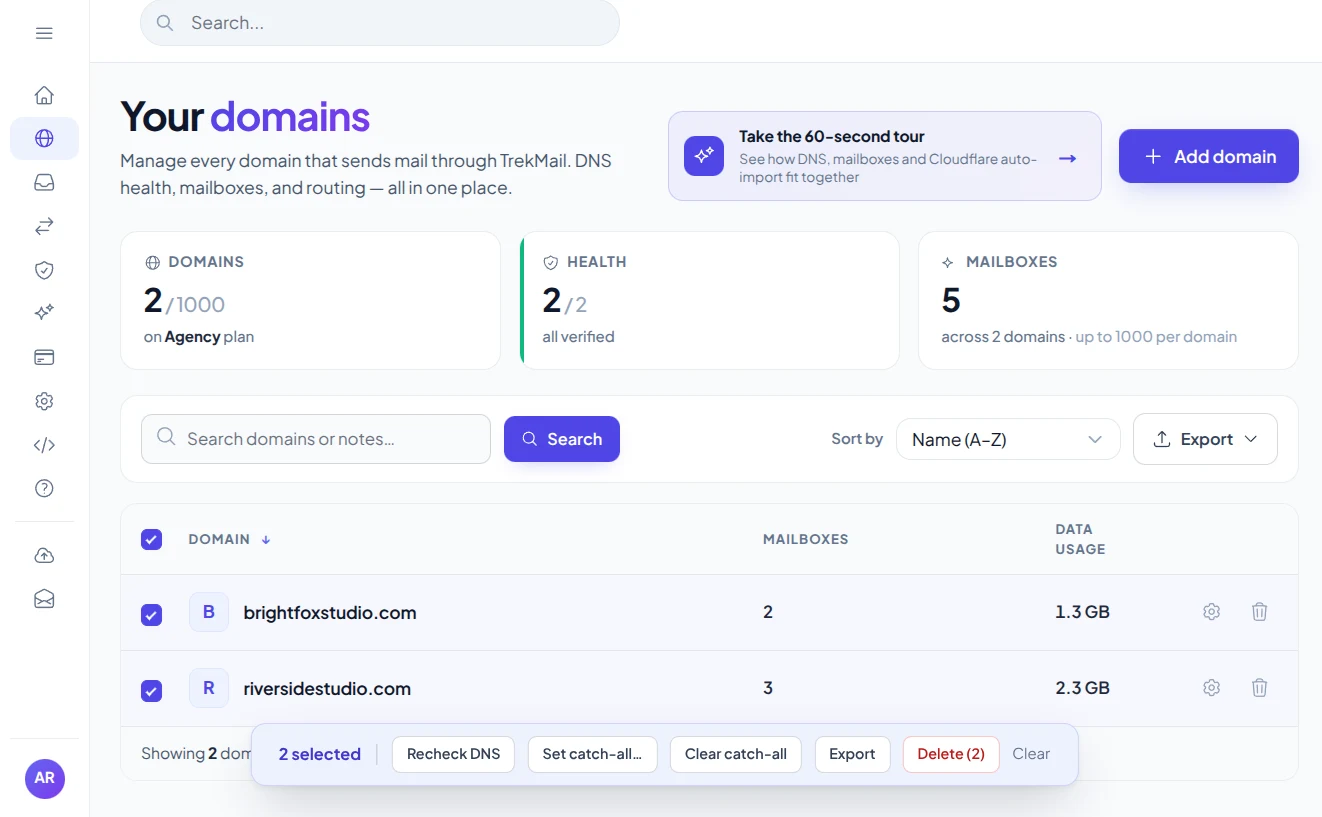
Bring your domainKeep your business identity.
Follow the setupGet the records and check them.
Your provider gives you a DNS record and a selector, such as selector1. After you add the record, use this tool to check that the public key can be found.
The expected selector has no key, an empty key, or a key format that cannot be read.
Compare the selector and DNS value with your service’s setup instructions. During key rotation, keep both old and new keys until the provider says the change is complete.
Look up the exact selector the service uses. A key can be present and well-formed while your actual messages still fail signature checks. For that, inspect a received message after the service is sending.
Your sending provider holds the private key. DNS publishes the public key that receiving servers use to verify signatures.
Open the original headers of a sent message. In DKIM-Signature, s= is the selector and d= is the signing domain. Enter those two values here. You can also find them in your provider’s DNS instructions.
The lookup uses selector._domainkey.domain. There may be several active selectors during key rotation. A missing record at one selector says nothing about the others.
A parseable public key does not prove a sender uses it correctly. Read Authentication-Results in a received message to confirm DKIM and DMARC alignment.
A little knowledge. A better setup.
A DKIM lookup needs two things: the signing domain and the selector your sending service uses.
Check DKIMOpen the original headers of a message delivered by your sending service. Look for DKIM-Signature. The s= value names the selector, while d= names the signing domain. In the example below, enter example.com as the domain and selector1 as the selector.
You can also find the selector in your provider’s domain setup screen. Google Workspace, Microsoft 365 and other services may use different or custom selectors. Use the value for your account rather than guessing a common name.
DKIM-Signature: ... d=example.com; s=selector1; ...

Lookup name: selector1._domainkey.example.com
Illustrative header excerpt; it is not a complete signature or a key to publish.
The DKIM checker looks at selector._domainkey.domain. Depending on the provider, your DNS may contain the public key directly or a CNAME that points to a provider-managed record. The report inspects the available key and highlights common format problems or a revoked key with an empty p= value.
DKIM stands for DomainKeys Identified Mail. Its private key stays with the sender; the public key helps receivers check a message’s signature. A key appearing in DNS does not prove that the service signs messages correctly or that DKIM aligns with the visible From address.
After the record is published, send a test message through the service and inspect Authentication-Results in the received copy. If you are rotating keys, follow the provider’s overlap instructions so messages signed with the previous key can still be verified.
Practical guides from TrekMail, with setup instructions and deeper explanations for this tool.
Choose a free inbox to get started, or a paid plan for sending through TrekMail. One plan covers your account, with no per-seat fees.
$0/month
Your own domain, your first mailboxes, no credit card.
Sending through TrekMail is included in paid plans. Nano can use your own SMTP service.
Try an eligible paid email plan for 14 days.
For a small business
$4/month
For a growing team
$10/month
For client domains
$29/month
USD prices, billed monthly. Annual options available. Trials require a card and convert to the selected paid plan on the date shown at checkout. Cancel before that date to avoid a charge.
More from TrekMail
Read your business email in TrekMail webmail, or connect your favorite email app. Explore the other products when you need more from your workspace.
Explore email hosting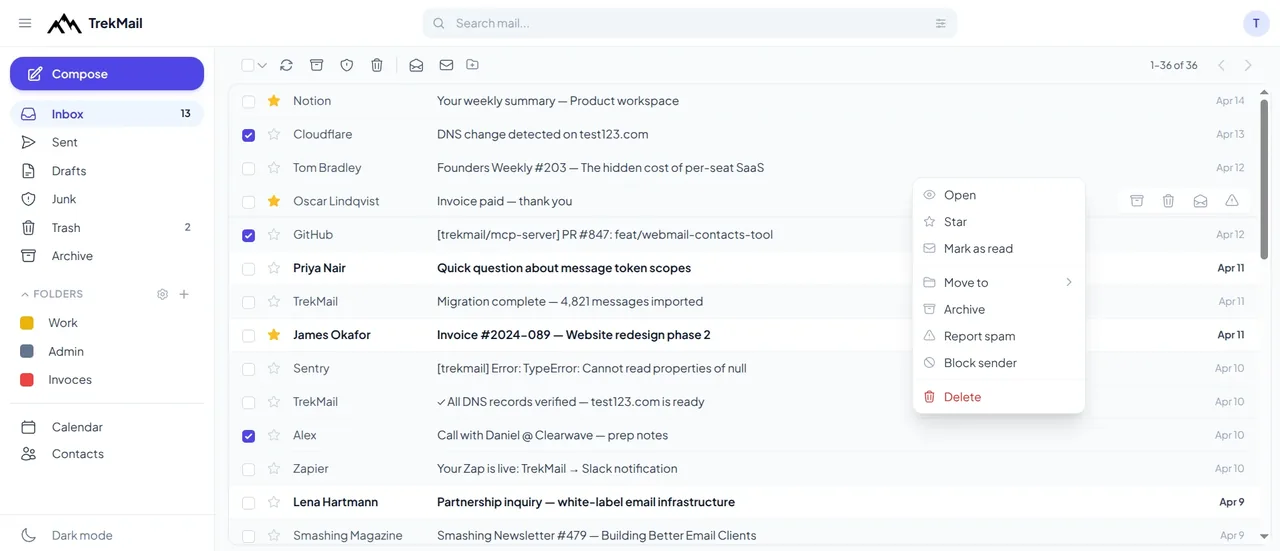
 Email verifierCheck individual email addresses before you use them.Explore email verifier
 Cloud DriveStore and share files alongside your email.Explore Cloud Drive
 AI agent emailGive your workflows an inbox they can work with.Explore AI agent email
 White LabelOffer a branded email experience to your customers.Explore White Label
Good questions. Clear answers.
Find the details you need, then return to the tool when you’re ready.
Check DKIMUse your administrator’s DNS instructions or the s= tag in a message sent by that service. Provider defaults can vary, and selectors can change during rotation.
An empty p= value revokes the key at that selector. It is not a usable public key for verifying signatures.
For RSA, current DKIM guidance requires at least 1024 bits and recommends 2048 bits. This tool flags RSA keys below 2048 bits. Ed25519 uses a different key format and size.
This checks the DNS key only. Cryptographic signature verification also needs the original message headers and body.
Confirm the signing domain and selector with your provider, check that the record was added to the correct DNS zone, and allow cached answers to expire. A missing key at one selector does not mean that the domain has no other DKIM keys.
No. The selector is the name used to find a key in DNS. The public key is the value published at that lookup name or its provider-managed destination.
Choose a check, enter your domain and get a result. Or generate a new password in your browser. Every tool is free to use, with no account needed.
 Free tool
See where your domain receives email and which sending records are published.
Check domain Free tool
See which services your domain allows to send email and spot common mistakes.
Check SPF Free tool
Find out how your domain asks receivers to handle messages that fail checks.
Check DMARC
Free toolFind the mail servers that receive email for your domain.
Look up MX Free tool
Choose a length and characters, then generate and copy a fresh password.
Generate password
Create your TrekMail account, bring your domain and follow the setup. Start with free Nano, or try an eligible paid email plan for 14 days.
Nano needs no card. Paid trials require a card.Access your dashboard, mailboxes and DNS.
By continuing, you agree to TrekMail's Terms and Privacy Policy.