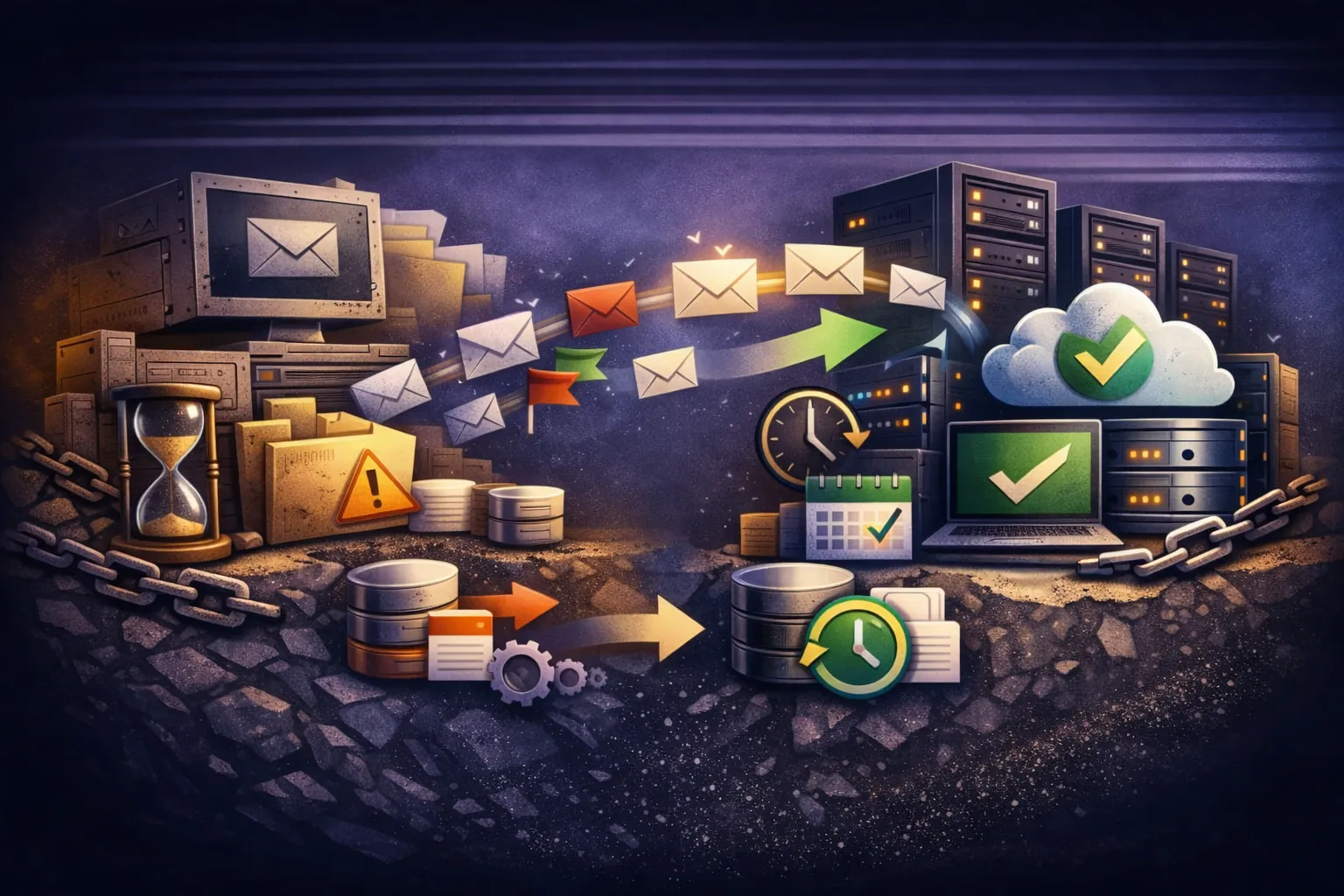
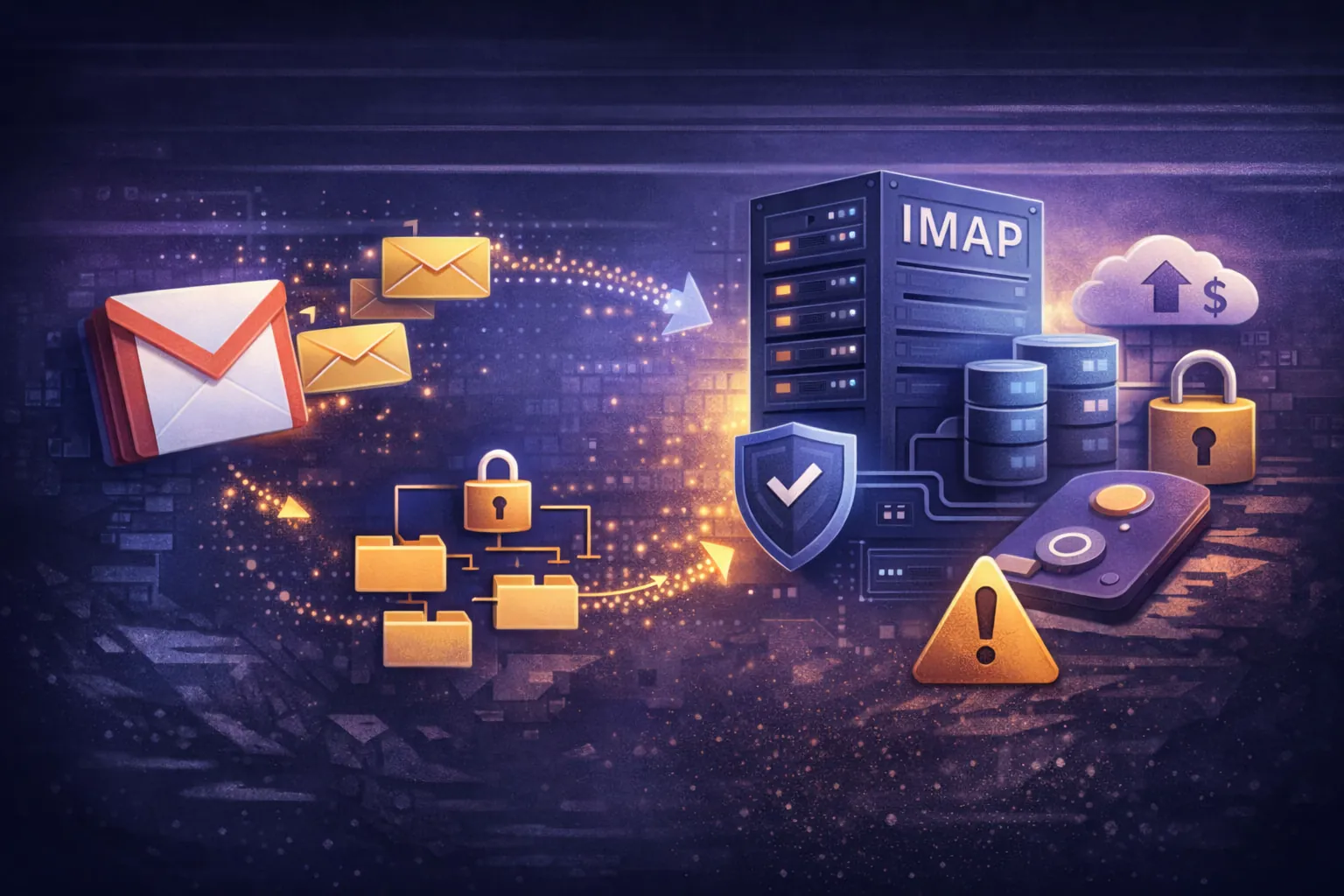
Before changing email hosting for everybody, choose one mailbox whose owner can help check the result. In TrekMail, the dashboard import on Starter and above copies IMAP messages into a prepared destination mailbox. Start with a representative but manageable set of folders. The first goal is a comparison you can explain, not a quick success label followed by closing the old service.
Choose a pilot that can answer a real question
The smallest mailbox is not always the most useful pilot. Pick an owner who can recognize their correspondence and help check the result. A manageable mailbox with an old attachment, some recent replies, and at least one custom folder can reveal more than a nearly empty account that only proves a connection was possible.
Define the scope before copying. Record the source address, the prepared target, the selected folders, and any date restriction. These details make a later comparison meaningful. If you copy only a recent period, the target should not be judged against the source's entire lifetime count. If you omit a folder, its absence is not the same as an unexplained missing message.
Ask the owner for a few recognizable examples. They might choose a particular customer conversation, a sent proposal, and an older document they still use. Record enough detail to find them again without exposing their contents in a general migration checklist. These are reference points for inspection, not a substitute for reviewing the overall result.
Also decide what the pilot will not prove. Copying one person's history does not configure every employee's phone, transfer the calendar, or show that all customers now send to the new provider. It tests a defined archive and the way you inspect it. Use the findings to improve the next group's instructions before increasing the number of mailboxes involved.
Prepare space for the archive
Start with a mailbox list, recording each owner and approximate archive size. List additional addresses and forwards separately. They are easy to miss if you only work from an employee list.
Create the destination mailboxes in TrekMail and check available storage. Connecting to the old service requires suitable IMAP credentials. IMAP is a way to access server-side messages and folders. Some providers require a separate app password instead of the ordinary password.
Dashboard import in TrekMail is available from Starter. Before moving, read the email import overview, particularly the source provider's restrictions.
Copy the archive before changing delivery
Start with one small mailbox or a selection of folders. This lets you inspect the result and check authorization without rushing. Then move on to the main archive.
Choose recognizable messages for checking: an old email with an attachment, a recent conversation, and something from a custom folder. Open attachments, check the dates you need, and find where sent messages went.
A single total message count does not always explain differences. Selected folders, date filters, and source-specific behavior affect the result. If counts differ, check those settings first. Don't delete the source archive until you understand why.
Review Trash and Spam separately. If they contain documents you need to keep, move them to an ordinary folder beforehand. System folders may have their own automatic deletion periods.
Explain differences before making the next move
Compare like with like. Look at the same selected folders and the same period in both services, then inspect the reference messages. A difference in total storage size is a reason to investigate, but it does not identify which message is missing. The import scope and the original provider's organization can affect what those totals represent.
If a reference message is not where the owner expects, search the target and check the folder selection before assuming it was lost. If a date looks unfamiliar, compare the actual message and the way each service displays it. Open an older attachment rather than relying on a filename in the list. Keep an unresolved difference in the pilot record so it does not disappear when the team starts discussing the wider move.
Separate archive acceptance from the delivery change. You can inspect copied mail before changing MX, while the old provider still receives new messages. After delivery changes, some messages may still reach that old provider during the transition. Agree who watches it and how those later arrivals will be copied or transferred. Do not describe the first import as a continuously maintained mirror.
Finish with the owner completing an ordinary task: finding a known conversation, reading the relevant document, receiving a new test from an external address, and sending an appropriate reply. Those checks tell you more about readiness than a successful import status alone. Move the next group when the differences are understood and the instructions are usable, while retaining the old service until your final comparison is complete.
Switch incoming mail delivery
Once the main mailboxes and archives are ready, change the domain's MX records. These tell other mail servers where to deliver incoming messages. This is a separate step: copying history does not redirect new mail to TrekMail.
Agree the timing with the team. Employees need to know when to start using the new mailbox and which settings to enter in their email apps. Check outgoing sending too, so they can reply as well as receive.
DNS updates do not take effect for every sender simultaneously. Monitor the old service during the transition because messages may still arrive there. Plan an additional copy or manual transfer of mail received after the initial import.
Finish the move after checking the result
Test receipt from an external address and send a reply. Ask mailbox owners to find familiar messages and folders. They can help identify anything missing.
Move contacts and calendars using their own transfer methods. Recheck signatures, sorting rules, and forwards. They don't appear automatically with IMAP history.
Keep a pilot record with source and destination addresses, selected folders, date range, storage used and a few recognisable messages. Mark whether an old attachment opens, dates look right, sent mail is in the expected folder and a new external message can be answered. Investigate differences before moving the next group. Keep the old service available through the mail-delivery change and final comparison; this is not a promise of zero delay or an automatically mirrored archive.
The dashboard import guide covers the actual setup and source details.
Related reading
- Email Migration Guide: Move Mail Without Downtime (2026)
- Email Migration Checklist for a Clean IMAP Cutover
- Can we move just email and keep our existing work apps?
- Moving your website? Keep business email working
- A bulk email move has failed rows. What should you retry?
- Gmail is full. Will moving old email free up space?