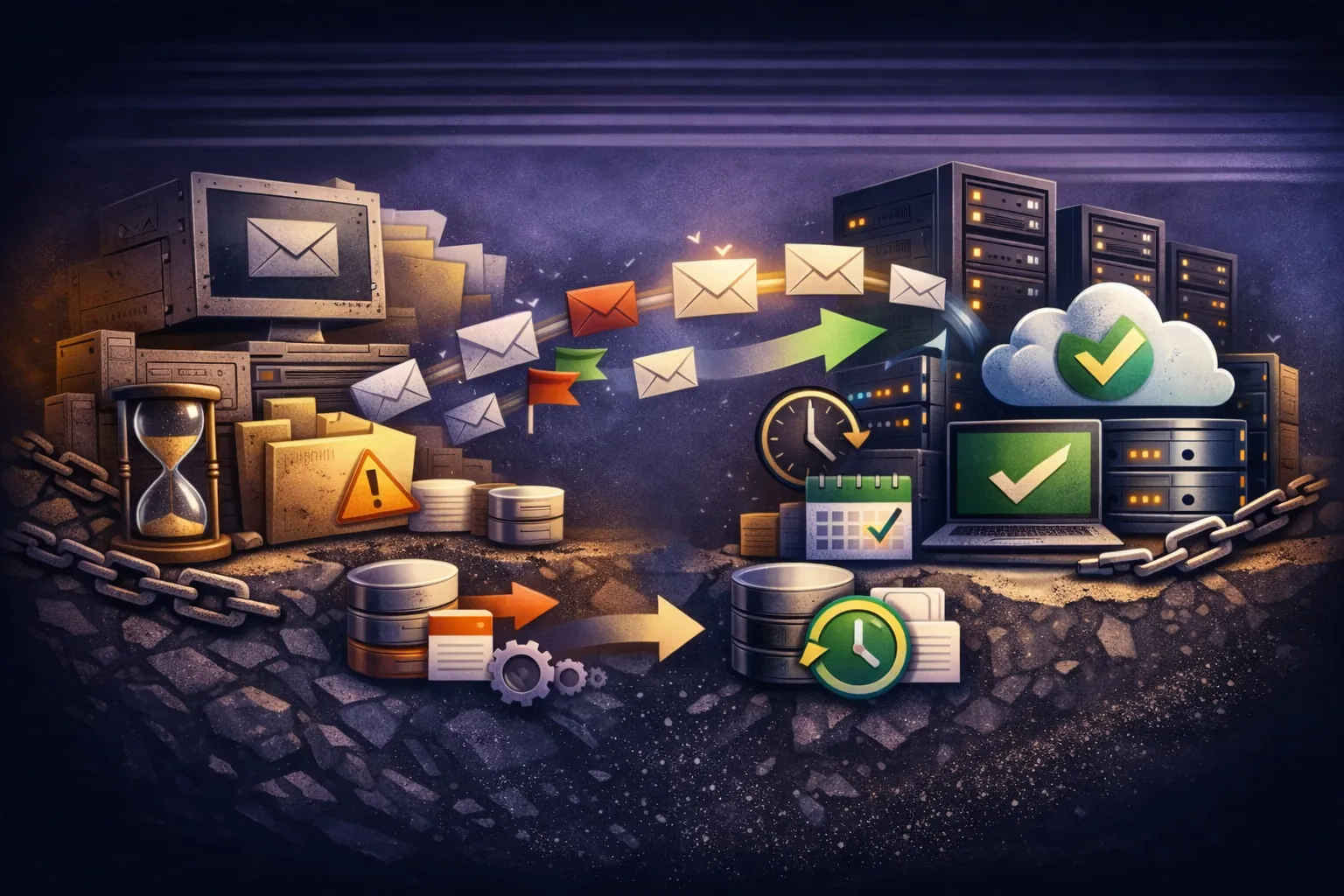
You're staring at a migration project that makes you nervous. You need to move email from Server A to Server B without losing a single message, without destroying the folder structure, and without paying a $15/user "migration license" to a third-party vendor just to move bytes you already own.
You're looking for imapsync. This guide will tell you exactly how to use it without blowing up your users' mailboxes.
What imapsync Is (and What It Isn't)
imapsync is a command-line utility that synchronizes mailboxes between two IMAP servers. It acts as a proxy — connecting to both servers simultaneously, reading messages from the source, and appending them to the destination. It tracks state, handles interruptions, and preserves folder structure, flags, and message content.
It is not a backup tool. It is not an SMTP relay. It doesn't touch your Google Calendar, your Outlook contacts, or your Exchange transport rules. It speaks IMAP, and only IMAP. If your source server is firewalled or offline, imapsync can't reach it. Full stop.
What makes it the industry standard for mailbox-to-mailbox moves is the state preservation layer. A successful migration isn't just about moving text — it's about preserving three things:
- Content: The RFC 822 message body, attachments, MIME encoding — everything inside the envelope.
- Metadata: The flags.
\Seen(read),\Answered(replied),\Flagged(starred). If these don't carry over, every user thinks they have 4,000 new unread emails on day one. - Structure: The folder hierarchy.
INBOX/Clients/ProjectAmust look identical on the new server, not collapsed into a folder literally namedINBOX.Clients.ProjectAwith dots in the name.
imapsync handles all three — if you configure it correctly. That's the hard part, and that's what this guide is for.
The hard limits: It doesn't inherently know Gmail's rate limits or Microsoft's API throttles. Run it full blast and you'll get your IP banned. It also won't push — if you need data to go somewhere, you have to pull it. And it doesn't delete on the destination by default, which is a safety feature that can also bite you if you're not paying attention (more on that in Phase 6).
For a broader look at the protocol itself, see our guide on setting up email on your domain.
Phase 1: Forensic Discovery — Don't Skip This
Amateurs start copying. Professionals audit the environment first. If you don't know what you're moving, you will fail — and you'll fail at 2 AM on a Sunday when it's too late to fix it.
1. Find the Whales
You have a user with a 45GB mailbox. Maybe the CEO. Maybe whoever owns the sales@ alias from 2011. If you try to migrate them in the same batch as your 500MB users, your batch stalls and you're staring at a frozen terminal with no idea how far along you are.
Run a pre-scan first:
imapsync \
  --host1 imap.source.com --user1 user@source.com --passfile1 /secret/pass1 \
  --host2 imap.dest.com --user2 user@dest.com --passfile2 /secret/pass2 \
  --dry --justfoldersizes
This gives you a per-folder breakdown without touching a single message. Any mailbox over 10GB needs dedicated handling: longer timeouts, a dedicated run window, and your full attention.
2. The Dark Data Problem
Every company has zombie accounts. Ex-employees whose email still forwards somewhere. "Service accounts" that are actually shared inboxes for a printer or a legacy CRM integration. If you miss these during inventory, that data gets stranded when you flip the DNS switch.
Audit your source user list against your actual active users. If bob@company.com left three years ago, decide now: migrate him, or archive him to an EML export? If you don't decide before the cutover, you'll be deciding under pressure at the worst possible time. See our client email management guide for a full pre-flight inventory template.
3. The Item Count Truth
Never trust the size in gigabytes. Source Server A might report a mailbox as 10GB. Destination Server B might report the exact same data as 11GB. This isn't a bug — different servers calculate storage differently. Exchange includes the Recoverable Items folder (the "Dumpster"). Gmail deduplicates messages across labels.
The metric that matters is item count. If the source has 14,200 messages and the destination has 14,200 messages, you're done. Byte variance under 10% is normal and expected. Over 10%? Investigate before you sign off.
Phase 2: The Safe Migration Workflow
The biggest mistake in any migration is the "Big Bang" approach — moving everything on Friday night and hoping it finishes by Monday morning. If you have 50GB of mail and a 500KB/s throttle, the math doesn't work. You will be down on Monday, explaining to your CEO why their inbox is empty.
The professional approach is a staged migration. You do the heavy lifting while users are still on the old system, then execute a tiny final delta when you flip the switch.
Step 1: The Dry Run
Before you move a single byte, verify you can connect. Use --dry combined with --justfolders. This simulates the run and shows you the folder structure without copying anything.
imapsync \
  --host1 imap.gmail.com --user1 user@source.com --passfile1 /secret/pass1 \
  --host2 imap.trekmail.net --user2 user@dest.com --passfile2 /secret/pass2 \
  --dry --justfolders
Look for two things: did authentication succeed, and what do the folder names look like? If you see [Gmail]/Sent Mail on the source, you need to map that to Sent Items on the destination. Don't discover this during the live cutover.
Step 2: The Bulk Sync (Pre-Stage)
Run this 1–2 weeks before your cutover while users are still working on the old system. The goal is to move 90–95% of the data out of the critical path.
imapsync \
  --host1 imap.source.com --user1 user@source.com --passfile1 /secret/pass1 \
  --host2 imap.dest.com --user2 user@dest.com --passfile2 /secret/pass2 \
  --usecache --skipsize --maxsize 25000000
--usecache is non-negotiable. It saves the migration state locally. Every subsequent run compares against this cache and only processes changes — it won't re-examine every message from scratch. Without it, each run is a full scan.
--maxsize 25000000 skips messages larger than 25MB on the first pass. Large attachments cause the most timeouts and connection drops. You'll catch them in a dedicated run with extended timeouts.
Step 3: The Delta Sync
A few days before the switch, run it again. imapsync reads the cache, sees that 10,000 emails are already at the destination, skips them, and copies only the 50–100 new messages that arrived since the bulk sync. This run should finish in minutes, not hours.
Step 4: The Cutover
This is the moment. Handle it in sequence:
- Lower your DNS TTL: 48 hours before the switch, set your MX record TTL to 300 seconds. If you wait until the last minute, some resolvers will cache your old MX for up to 24 hours and email will land on the old server after you've already cut over.
- Switch MX records: Point them to your new host.
- Wait 60 minutes for propagation to settle across major resolvers.
- Run the final delta: One last imapsync pass catches any messages that landed on the old server during the propagation window.
For a detailed walkthrough of the DNS window and what to watch during propagation, see our guide on setting up email on your domain.
Phase 3: Flags, Folders, and the Sent Trap
IMAP servers speak different dialects. If you don't translate between them, your users wake up to a structurally broken mailbox — and they will blame you, correctly.
The Delimiter Problem
This is the most common technical failure that nobody talks about until it happens to them.
Different IMAP servers use different characters to separate folder hierarchy levels:
- Dovecot typically uses a dot:
INBOX.Clients.ProjectA - Exchange/Outlook uses a slash:
INBOX/Clients/ProjectA - Some servers use no separator at all and rely on the IMAP
NAMESPACEcommand
If you migrate blindly, imapsync might create a folder on the destination literally named INBOX.Clients.ProjectA — a single flat folder with dots in its name, not a nested three-level hierarchy. Every user's folder structure looks like it exploded.
The fix is --regextrans2, which rewrites folder paths on the fly using regular expressions. Always test folder creation with --dry on a single test account before running a batch of 100 users.
The Sent Items Chaos
Every server names the Sent folder differently. This is not a minor inconvenience — it's a user experience disaster if you ignore it.
| Email Platform | Sent Folder Name |
|---|---|
| Gmail / Google Workspace | [Gmail]/Sent Mail |
| Outlook / Exchange | Sent Items |
| cPanel / Courier | Sent |
| German servers | Gesendete Elemente |
| Spanish servers | Enviados |
If you don't map these, your user ends up with two sent folders: their active Sent Items and a new ghost folder named Sent Mail containing their entire history. They will notice. They will not be happy.
Map them explicitly:
--regextrans2 's/^\[Gmail\]\/Sent Mail/Sent Items/'This tells imapsync: "If the source folder starts with [Gmail]/Sent Mail, rename it to Sent Items on the destination." Run your full folder map as a --dry pass first to confirm every mapping fires correctly before you commit.
The Gmail All Mail Trap
Gmail has a folder called [Gmail]/All Mail. It contains a copy of every single email, regardless of label. It's Gmail's internal catch-all view, surfaced as an IMAP folder.
If you migrate All Mail and Inbox and Sent Mail, you will duplicate every email two or three times on the destination. A 10GB mailbox becomes 30GB. Every message appears multiple times. It's a disaster.
Always exclude it:
--exclude "All Mail"Also exclude [Gmail]/Spam and [Gmail]/Trash unless you have a specific reason to bring them over. Nobody wants their old spam migrated.
Phase 4: Performance Tuning and Throttling
You cannot blast data at Google or Microsoft. Their infrastructure treats a high-volume IMAP connection exactly like a denial-of-service attack. Because from their perspective, it looks the same.
The Penalty Box
Push past the rate limits — usually around 1 message per second or 500MB per hour for Gmail — and the server starts returning HTTP 429, NO [OVERQUOTA], or just BAD errors. Keep pushing and the account gets locked for 24 hours. That's a support call you don't want to make.
The Tuning Flags
--maxmessagespersecond 1     # Hard speed limit: 1 email per second
--maxbytespersecond 500000   # Bandwidth cap: 500KB/s
--timeout 120                # Network timeout in seconds (default is often too short for big attachments)
--reconnectretry1 3          # Retry on source connection drops
--reconnectretry2 3          # Retry on destination connection drops
1 message per second sounds painfully slow. It is. But it's steady, and steady finishes. An aggressive run that gets banned at hour 3 finishes never.
MSP note: If you're running parallel migrations for multiple clients, don't run them concurrently against the same source server. Stagger start times. Each parallel stream needs its own throttle budget.
If you're migrating to TrekMail, our IMAP ingestion handles high-concurrency connections well — you can push harder on the destination side than you can on the source side with Google or Microsoft.
Phase 5: Authentication — The Modern Auth Hurdle
The days of dropping password123 in a plaintext file are over. Both Google and Microsoft have deprecated Basic Auth for IMAP. If you try your standard login credentials, it will fail with an authentication error, and you'll spend an hour wondering what you did wrong.
App Passwords (SMB Path)
For most single-domain migrations, App Passwords are the fastest path. They're 16-character strings that bypass 2FA and work with legacy IMAP clients:
- Log into the source account (Gmail, Workspace, etc.)
- Enable 2-Factor Authentication if it's not already on (required to generate App Passwords)
- Go to Security settings → App Passwords
- Generate a password for "Mail" on "Other device"
- Use that string as the password in your imapsync
--passfile
Store it in a file with chmod 600, not in the command line. Credentials in bash history is a bad day waiting to happen.
OAuth2 (MSP / Enterprise Path)
If you're an MSP migrating 500 users, you cannot generate 500 App Passwords manually. You need OAuth2. This path is more complex but the only realistic option at scale:
- Register an application in the source tenant (Azure AD for Microsoft, Google Cloud Console for Google)
- Grant it full mailbox access across the tenant (Global Admin approval required)
- Generate a Refresh Token per user or use service account impersonation
- Pass the token to imapsync via
--oauthaccesstoken1
If you misconfigure the application permissions in Azure AD or GCP, you either get access denied on every mailbox or — worse — you accidentally grant broader permissions than intended. Read the permission scopes carefully before you click "Grant admin consent."
For a practical look at migration at scale, see our guide on the client email management approach.
Phase 6: Common Failure Modes and Recovery
Even a perfect plan hits problems. Here's how to read what went wrong and fix it without starting over.
1. The UIDVALIDITY Problem (The Nightmare Scenario)
Every IMAP folder has a unique identifier called UIDVALIDITY. It's how imapsync tracks which messages have already been copied. If a folder on the source server is deleted and recreated — or if the server's index corrupts and rebuilds — this ID changes.
Symptom: imapsync sees a new UIDVALIDITY, assumes it's a completely new folder, and re-downloads everything. You now have duplicates of every message in that folder. At scale, this is thousands of duplicates across hundreds of mailboxes.
Fix: Delete the local cache files in your temp directory, then re-run with --useheader:
--useheaderThis forces imapsync to compare the Message-ID header of every email — which is immutable and unique — rather than relying on the folder UID. It's slower, but it's duplicate-proof. Use it any time you suspect the source server's index has been touched.
2. Corrupt and Zero-Byte Messages
Legacy servers accumulate "ghost" messages: headers with no body, or files at exactly 0 bytes. Usually the result of a botched import, a crashed delivery, or a very old server with years of deferred maintenance.
Symptom: imapsync tries to fetch a message, the server hangs for 120 seconds, then drops the connection. This repeats indefinitely on the same message.
Fix:
--minbytes 10This tells imapsync to skip any message smaller than 10 bytes. A real email is never under 10 bytes. This is effectively a "skip empty files" filter, and it's safe to use on every migration.
3. The Zombie Delete Problem
You ran the bulk sync on Monday. On Tuesday, the user deleted 50 emails from the source. On Wednesday, you run the delta.
By default, imapsync only adds mail — it does not delete from the destination what was deleted from the source. This is intentional and correct for most use cases. But it means those 50 deleted emails reappear in the new mailbox. Users will report this as "ghost emails" or "emails I deleted coming back."
The fix is --delete2, but use it with extreme caution:
--delete2This tells imapsync: if a message isn't on the source, delete it from the destination.
Only use this during the pre-stage phase, before the MX switch. If you run it after cutover, new mail that has landed on the destination (because MX already points there) will be deleted because it doesn't exist on the old source. You will lose email. Do not use --delete2 post-cutover.
4. Connection Drops on Large Attachments
A 40MB PDF attachment will sometimes stall IMAP connections that have a short timeout. The server sends the message, the network hiccups, the connection drops at 95%, and imapsync logs an error and moves on — leaving you with an incomplete message at the destination.
Fix: Increase --timeout to 300 seconds for large-attachment passes, and consider using --maxsize 25000000 to skip them in the bulk sync, then run a dedicated large-attachment pass with relaxed throttling and extended timeouts.
Verification: How to Prove It Worked
The script finished. The terminal says done. How do you know the CEO's emails didn't vanish into a null route somewhere?
1. Read the Summary Block
imapsync prints a summary at the end of every run. The three numbers that matter:
- Transferred: Should be 0 on the final delta run. If it's non-zero, you still have messages that didn't make it over.
- Skipped: Should match (or exceed) the total source count. These are messages already at the destination.
- Errors: Should be 0. Any non-zero error count requires investigation before you call it done.
2. The Spot Check
Log into the new mailbox with a fresh IMAP client (not one with a cached local store — that defeats the purpose). Check:
- Sent Items: Are years of sent mail there, properly nested?
- A deeply nested subfolder: Does the hierarchy look correct?
- The most recent email: Is it the same one that appears in the source?
- A flagged/starred message: Did the
\Flaggedattribute carry over?
3. The Forensic Search
A user reports a missing email. Before you say "it must have been lost," check the log:
grep -i "bob@sender.com" /var/log/imapsync/user@source.com.logThe log records the fate of every single message: Transferred, Skipped (already at destination), or Error with the specific error code. If it's an Error, you know exactly which message, which folder, and which error code caused it. That's your starting point for recovery — not guessing.
4. The Item Count Audit
For a final sanity check, query both servers directly:
# On source (example for Dovecot)
doveadm mailbox status -u user@source.com messages '*'

# Or use imapsync's own count
imapsync ... --dry --justfoldersizes 2>&1 | grep "Messages"
Compare source item count to destination item count. They should be within 1–2% of each other (accounting for spam folder exclusions and the Gmail All Mail deduplication). Anything more than that, dig into the error log before signing off.
The Alternative: Skip the Terminal
We wrote this guide because we believe in transparency. imapsync is the right tool for operators who want full control and don't mind getting their hands dirty with Perl dependencies, OAuth2 app registrations, and log forensics.
But for many operators — whether you're a founder moving your first domain or an agency migrating 200 client seats — the time cost of configuring all of this outweighs the software savings.
| Approach | Best For | What You're Trading |
|---|---|---|
| imapsync (DIY) | Sysadmins, full control scenarios, unusual source servers | Time and expertise for zero tool cost |
| TrekMail Built-in Migration | Founders, agencies, operators who value their time | Control over granular flags in exchange for speed and simplicity |
| Third-party migration vendors | Enterprise with compliance requirements and budget | Money (often $15–$25/user) for SLA guarantees |
TrekMail's built-in migration tool is server-side — no dragging folders around in Outlook for three hours, no Perl dependency hell. You point it at your source (Gmail, cPanel, any standard IMAP server), enter credentials, and the server handles the transfer. You can watch progress in the dashboard.
The pricing model is also different from what you're probably used to. No per-user fee. Flat-rate plans starting at $3.50/month cover up to 100 users across 50 domains, with pooled storage across all of them. That one executive with 40GB of attachments doesn't force you to upgrade everyone — the storage is shared across your whole account.
For a comparison of what's included at each tier, see TrekMail pricing. For a step-by-step walkthrough of the migration tool specifically, see the Starting a Migration guide in our docs.
Whether you script it yourself with imapsync or use our platform, the goal is the same: get your email moved without losing data, without drama, and without paying a per-seat toll to do it.
If you're ready to stop paying per-user fees and want the migration handled for you, try TrekMail free — 14-day trial, no card required.