
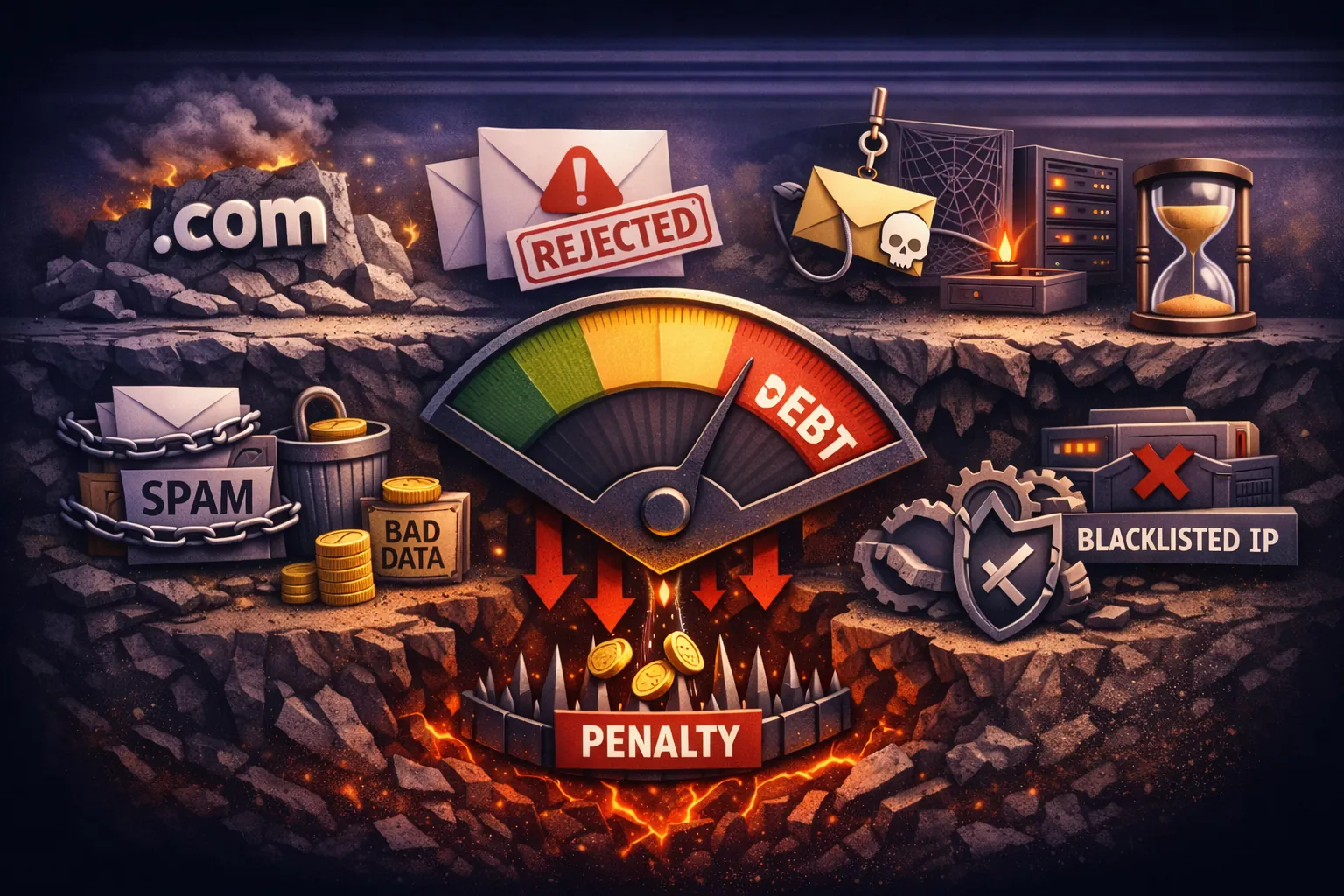
You can transfer email domain hosting without changing addresses, but you can also wreck mail flow in one bad DNS edit. That’s the whole game. The mailbox data move and the DNS cutover are separate jobs, and if you blur them together, mail starts bouncing or landing in two places at once.
If you need the full migration picture first, start with business email. This guide is narrower. It shows how to transfer email domain service from one provider to another without breaking MX, SPF, DKIM, or DMARC while users keep working.
The core rule is simple: move data first, lower TTLs before the switch, publish new auth records early, and only then cut MX. If you skip that order, your transfer email domain project turns into a cleanup job.
What does transfer email domain actually mean?
To transfer email domain service, you keep the same domain name and email addresses, but point mail delivery and sending authentication to a new host. The risky part is not the mailbox copy. It’s DNS timing, old records left behind, and auth records that no longer match the new sender.
When people say they want to transfer email domain setup, they usually mean three separate tasks:
- Copy old mailbox data into the new platform.
- Create the same mailboxes, aliases, and forwards on the new host.
- Switch DNS so new mail lands at the new provider.
That order matters. If you point MX first and migrate later, new mail starts landing in empty inboxes. If you copy mail first but forget SPF or DKIM, outbound mail gets flagged or rejected.
That’s why serious operators split the job into prep, cutover, and stabilization. If you’re migrating message history from an older host, TrekMail’s built-in IMAP import can pull mail from Gmail, Outlook, Yahoo, iCloud, or another IMAP server on Starter and higher plans. If you want a deeper mailbox-copy workflow, read imapsync.
Phase 1: Prep your transfer email domain cutover 24-48 hours early
The prep phase shrinks the blast radius. Before you transfer email domain routing, lower TTLs, copy mail, create destination mailboxes, and publish the new provider’s auth records so the internet has time to catch up.
1. Lower TTL on existing mail records
Cut the TTL on MX, SPF, and DMARC records to 300 seconds if your DNS provider allows it. Do this at least 24-48 hours before the switch, not five minutes before. Cached DNS data doesn’t care about your deadline.
dig example.com MX

dig example.com TXT

dig example.com TXT _dmarc.example.com
If the old TTL was 3600 or 86400, some resolvers will keep the old answer until that timer expires. That’s why a clean transfer email domain plan starts days early, not at 4:55 PM on Friday.
2. Copy mailbox data before MX changes
Do the IMAP import while the old provider is still live. TrekMail’s import wizard runs against external IMAP accounts and writes into the target TrekMail mailbox in the background. That gives you a warm destination before new mail starts arriving.
For TrekMail-specific steps, link your domain, create the destination mailbox, then use Starting an Import in the Dashboard. TrekMail is IMAP-only, which is what you want here. POP3 is not supported, and that’s a good thing. POP makes migration messier because it breaks server-side continuity.
3. Create all destination identities now
Before you transfer email domain traffic, create every mailbox, alias, forward, and catch-all rule on the new side. Don’t assume you’ll remember the weird edge cases later.
Example: billing@, support@, careers@, noreply@, a catch-all inbox, and one legacy forward to a founder’s Gmail account. Miss one of them and the migration looks “mostly fine” until the wrong email disappears.
If you manage many brands or client domains, this is where flat-rate multi-domain hosting helps. Read multi domain email hosting if your problem is scale, not just one cutover.
4. Merge SPF before the move
During a transfer email domain project, old systems may still send replies or automated mail for a short period. Your SPF record has to authorize both the old and new senders during the overlap. Per RFC 7208, SPF evaluation is limited to 10 DNS-lookup-causing mechanisms and modifiers, so careless record stacking breaks fast.
v=spf1 include:_spf.google.com include:spf.trekmail.net -allIf you use TrekMail Free, outbound mail uses your own SMTP provider. If you use a paid TrekMail plan, Managed SMTP is included. Either way, don’t publish two SPF TXT records. Merge into one line.
5. Pre-publish DKIM and relax DMARC
Generate DKIM on the new provider before cutover and publish it with a fresh selector. Never overwrite the old selector while the old system is still signing mail. If your current DMARC policy is strict, drop it to p=none for the transition window so you can watch failures without blocking legit mail.
Also remember negative caching. If a resolver checks a DKIM selector before it exists, that miss can get cached based on the zone SOA behavior described in RFC 2308. Publish early.
Phase 2: Execute the transfer email domain cutover
The cutover phase is short and mechanical. Verify new records on the authoritative DNS, switch MX, recheck public resolvers, and test both inbound and outbound mail from real accounts.
Now the actual switch. Keep it boring. No side quests. No extra DNS cleanup in the same session unless it directly affects the transfer email domain cutover.
1. Verify the new provider is ready
On TrekMail, the domain should show Active and the required records should be green. Use Adding a Domain to TrekMail to confirm the current required records. As of March 2026, TrekMail’s docs show these baseline records:
MX   @              mail.trekmail.net.   priority 10
TXT  @              v=spf1 include:spf.trekmail.net -all
TXT  dkim._domainkey  [unique value from dashboard]
TXT  _dmarc         v=DMARC1; p=quarantine;
If your DNS still has old Google Workspace, Microsoft 365, Zoho, cPanel, or registrar MX records, remove them. Mixed MX is how split delivery starts.
2. Change MX and keep TTL low
This is the moment most people mean when they say transfer email domain. Delete the old MX set. Add the new one. Leave TTL at 300 while the world catches up.
dig @8.8.8.8 example.com MX

dig @1.1.1.1 example.com MX
Check at least two public resolvers. Then send live tests from an outside mailbox to the domain and from the new mailbox back out.
3. Check client settings if users connect by IMAP
If users are moving into TrekMail clients after the cutover, use the documented settings: IMAP imap.trekmail.net on port 993, and SMTP smtp.trekmail.net on 465 or 587. The reference is IMAP & SMTP Settings for All Clients.
If someone reports “I can send but not receive,” that is usually not a client problem. It’s still DNS.
| Record | What breaks if it’s wrong | Cutover action |
|---|---|---|
| MX | Inbound mail goes to old host or bounces | Replace old MX completely |
| SPF | Outbound mail fails auth or lands in spam | Merge old and new senders during overlap |
| DKIM | Messages lose trusted signature | Publish new selector before switch |
| DMARC | Legit mail gets quarantined or rejected | Relax to p=none during transition |
Phase 3: Watch the first 72 hours after you transfer email domain service
The first 72 hours tell you whether the move actually worked. Monitor inbound delivery, outbound authentication, and any system still sending from the old provider. Then remove temporary overlap records once traffic stabilizes.
This is where lazy cutovers get exposed. The transfer email domain switch may look done after ten minutes, but the leftovers show up over the next few days.
1. Look for mail still touching the old provider
Legacy CRM tools, scanners, WordPress forms, invoicing apps, and helpdesks often keep sending through the old route long after the cutover. Watch headers and logs. If you still see the old sender path, fix that integration before you tighten DMARC again.
2. Monitor authentication, not just delivery
A delivered message can still be failing SPF or DKIM and quietly training spam filters against you. Check a few real messages and verify alignment. TrekMail’s docs note a key rule: SPF fail plus DKIM pass can still be okay, especially with forwarding, because DMARC can pass on DKIM alignment.
If you still forward some mail externally after the switch, forward domain email to gmail covers the forwarding side effects and setup details.
3. Remove overlap records after traffic settles
Once no real mail is coming from the old platform, strip the old provider from SPF, remove old DKIM records, and raise TTL back to something sane like 3600. Then move DMARC from p=none back toward enforcement.
That final cleanup is part of the transfer email domain job. If you skip it, the old sender stays trusted longer than it should.
Old Way vs New Way
The old way treats email migration like a registrar transfer and hopes DNS figures itself out. The new way treats it like controlled infrastructure work: copy data first, cut MX once, validate auth, and use tooling that flags broken records fast.
| Old Way | New Way |
|---|---|
| Flip MX first and start copying mail later | Import mail before cutover, then switch delivery |
| Publish a second SPF record | Merge senders into one SPF record |
| Reuse old DKIM selector | Publish a fresh selector in advance |
| Keep strict DMARC during the move | Relax DMARC, observe, then re-enforce |
| Manage each domain as a one-off | Use one dashboard, pooled storage, and repeatable checks |
TrekMail fits the new-way model well if you manage more than one domain. You get custom domains, IMAP mailboxes, catch-all support, BYO SMTP on Nano or included SMTP on paid plans, mailbox forwarding, a migration tool, and API access. Pricing starts at $3.50/month on Starter, with Free, Starter, Pro, Agency, and Enterprise plans available. If you want the flat-rate model instead of per-user billing, see TrekMail pricing.
Final transfer email domain checklist
A good transfer email domain checklist is short: lower TTL, migrate data, create mailboxes, merge SPF, pre-publish DKIM, relax DMARC, switch MX, test live mail, then clean up old records after stabilization.
- Lower TTL 24-48 hours early.
- Migrate old mailbox data over IMAP.
- Create every mailbox, alias, forward, and catch-all on the new host.
- Merge SPF into one record.
- Publish new DKIM with a fresh selector.
- Set DMARC to
p=nonefor the transition. - Verify the new domain status is healthy.
- Replace old MX records completely.
- Send inbound and outbound test mail.
- After 72 hours, remove old auth records and tighten DMARC.
If you treat the transfer email domain process like DNS surgery instead of a settings tweak, you’ll keep mail flowing. If you want a simpler operating model after the move, TrekMail gives you flat-rate multi-domain hosting, pooled storage, and built-in IMAP migration without the usual per-user tax.


