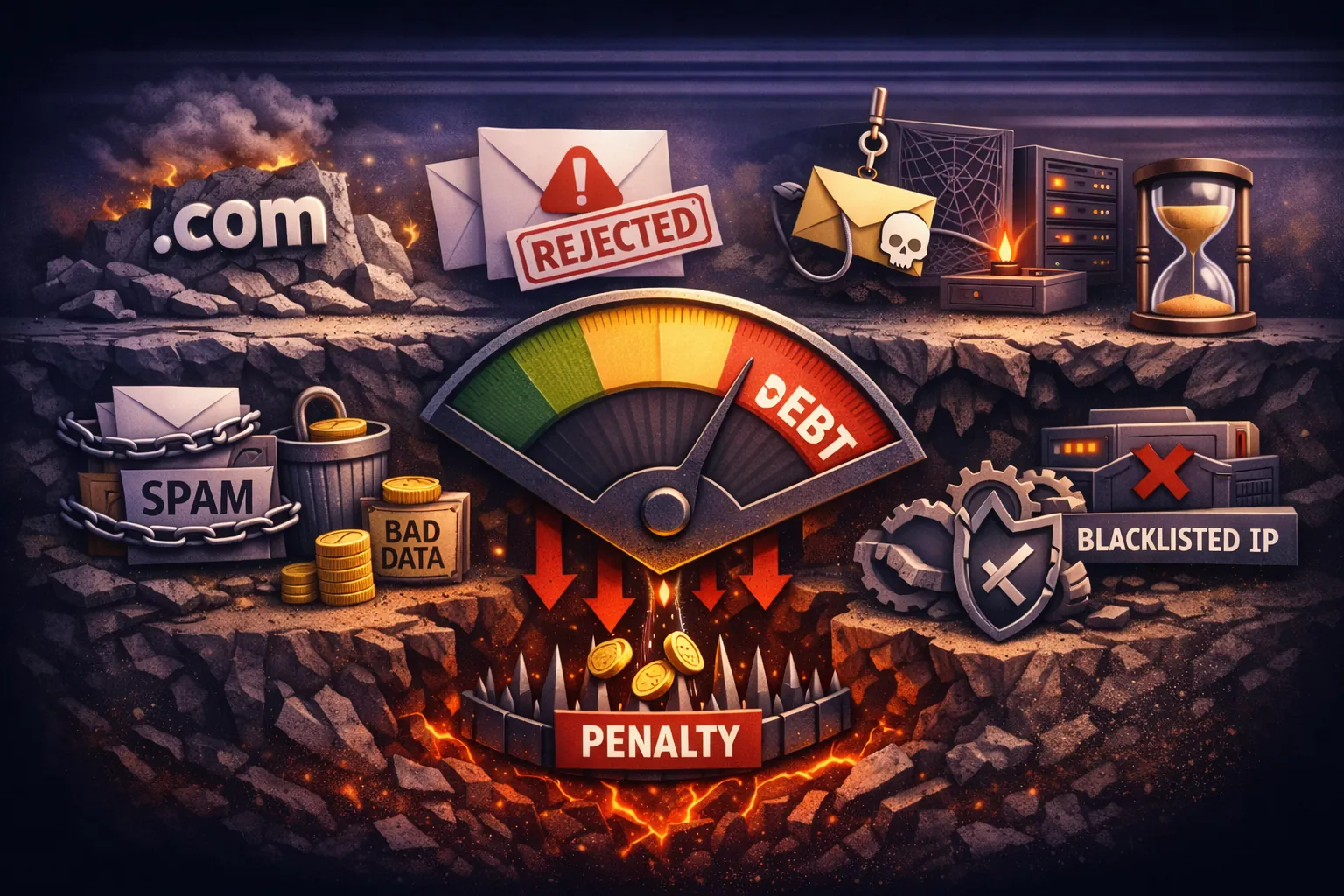
How to Migrate Email Without Losing Data or Suffering Downtime
If you're planning to migrate email from one provider to another, you're not just copying files. You're syncing a live database while new messages arrive, users delete items, and metadata shifts under your feet. Get it wrong and you'll face split-brain routing, lost mail, and a Monday morning panic.
This guide gives you a rigid, phase-by-phase plan to migrate email for a small business—covering DNS prep, IMAP sync strategy, the actual cutover, and post-move verification. No guesswork, no hand-waving.
Why Most Email Migrations Fail
Three specific oversights cause the majority of botched migrations. Understanding them up front saves you from learning the hard way when you migrate email under real-world constraints.
DNS Caching: If you don't lower your TTL before the switch, mail routes to both old and new servers for up to 24 hours.
Throttling: Providers like Google cap IMAP downloads at roughly 2,500 MB/day. Hit that limit and your sync stalls mid-stream.
Scope Creep: IMAP moves email only. Calendars and contacts live in separate protocols (CalDAV/CardDAV) and won't come along for the ride.
Phase 1: The Forensic Audit (T-Minus 7 Days)
You can't migrate what you don't know exists. Before you migrate email, build a technical inventory—don't rely on memory.
Inventory Shadow Identities
A username list isn't enough. Map every entry point into your mail system:
- Aliases: Does
john@also receive mail forsales@? Forget to configure that alias on the new host and half his mail bounces. - Distribution Lists: Are
team@andinfo@shared mailboxes or forwarding groups? - Forwarders: Audit server-side forwarding rules. Hidden rules forwarding to personal Gmail accounts will break unless recreated.
Identify the Whales
Scan for mailboxes larger than 10 GB. IMAP is chatty—a 50 GB mailbox won't finish in an hour. Microsoft 365 often throttles after roughly 20 GB/day. Tag these users for a pre-stage sync starting at least 5 days before cutover. The Google Workspace data migration guide documents these limits in detail.
The Email-Only Reality Check
Migration tools—including imapsync and TrekMail's built-in engine—use the IMAP protocol (RFC 3501). IMAP transfers email only.
Calendars and contacts don't exist in IMAP. They live in proprietary formats (Exchange, CalDAV). Instruct users to export calendars (.ics) and contacts (.vcf or .csv) locally before you cancel the old subscription.
Phase 2: Infrastructure Prep (T-Minus 48 Hours)
Don't touch the data yet. Prepare the plumbing first so that when you migrate email, the destination is ready.
The 300-Second Rule (DNS TTL)
DNS records have a Time To Live (TTL) that tells the internet how long to cache your address. If yours is set to the default 86,400 seconds (24 hours), switching providers on Friday means the internet keeps sending mail to the old server until Saturday.
The fix: log into your DNS provider (Cloudflare, GoDaddy, Route53) and set MX record TTL to 300 seconds. Do this at least 24 hours before the move.
dig yourdomain.com MX +short
Provision the Destination
Create mailboxes on the new provider. TrekMail users: set up your domains and users in the dashboard. On the Nano plan, configure your BYO SMTP credentials (SES/Mailgun) now so outbound mail works on cutover day.
Make sure you have source mailbox passwords. If not, you'll need to reset them or use an admin credential.
Phase 3: The Pre-Stage Sync Strategy
Never do a "Big Bang" migration where everything moves on Friday night. When you migrate email in stages, you cut risk dramatically.
Step 1: Historical Pass (T-Minus 3 Days)
Configure your migration tool to sync all email older than 7 days. This moves roughly 95% of data volume while users keep working. If a 2 GB attachment fails, you have days to fix it—not hours.
Watch for HTTP 429 or "User is throttled" errors. If they appear, reduce concurrent migrations (5 users at a time, not 50).
Step 2: The Freeze (T-Zero, Friday Evening)
Notify users: "Email migration in progress. Do not send new mail. Webmail is read-only." If possible, change passwords on the source to prevent orphan emails that won't get migrated.
Step 3: Delta Sync
Run the migration tool again. This pass grabs the last 7 days plus anything moved or deleted during pre-stage. Because 95% of data is already there, this pass takes minutes.
Phase 4: The Cutover
Switch MX Records
Update your DNS MX records to the new provider. TrekMail users point to:
10 mx1.trekmail.net
20 mx2.trekmail.net
With a 300-second TTL, traffic shifts to the new servers almost immediately.
SPF and DKIM Authentication
Skip this and your mail goes straight to spam. Every time you migrate email to a new host, authentication records must be updated.
- SPF: Update your TXT record. Example:
v=spf1 include:spf.trekmail.net -all - DKIM: Generate DKIM keys in your new provider's dashboard and add the CNAME/TXT records to DNS.
For a detailed walkthrough of DNS records during a switch, see how to set up email on your domain.
The Zombie Check
If you're leaving Google Workspace but keeping the account for Drive/Docs, Google may still catch internal mail instead of routing it out to the new MX. Disable the Gmail service on affected users or configure split delivery.
Phase 5: Verification
Don't ask users "is everything there?" They don't know. Use math to confirm that you migrate email successfully.
Item Counts, Not Size
Don't compare total GB—compression varies between providers. Compare item counts per folder:
| Folder | Source Items | Destination Items | Status |
|---|---|---|---|
| Inbox | 4,102 | 4,102 | Pass |
| Sent | 2,340 | 2,338 | Pass (<1%) |
Under 1% variance is acceptable (usually corrupt or malformed items). Over 5% needs investigation.
Folder Hierarchy
Check for folder flattening. Deep trees like Clients/2024/Project A/Invoices/Paid sometimes get truncated. Also watch for namespace mismatches like INBOX.Sent vs. Sent.
Troubleshooting Common Failures
| Error | Meaning | Fix |
|---|---|---|
HTTP 429 | Source provider throttling | Exponential backoff—wait 5 min, then 10 min |
| Authentication Failed | Bad credentials or 2FA blocking | Generate an App Password; regular password won't work with 2FA |
| Folder Creation Failed | Illegal characters in folder name | Rename the folder on the source (remove emojis, slashes) |
| Message Too Large | Destination rejects messages >25 MB | Skip and move manually via cloud storage |
TrekMail's Built-In Migration Engine
If orchestrating IMAP syncs, throttling limits, and DNS propagation sounds like a liability, TrekMail handles the physics for you—so you can migrate email without the operational overhead.
For Small Businesses (1–50 Users)
TrekMail includes a native migration engine. Connect your old provider (Gmail, Outlook, cPanel), select mailboxes, and execute. The infrastructure handles retries, respects rate limits, and deduplicates automatically. No command line required.
For Agencies (100+ Domains)
Managing migrations across multiple clients kills margins. TrekMail offers bulk operations, pooled storage across domains, and flat-rate pricing. You pay for infrastructure, not seats.
| Plan | Price | Migration Engine | Best For |
|---|---|---|---|
| Free | $0 | Included | Testing and personal use |
| Starter | $3.50/mo | Included | Small teams |
| Pro | $10/mo | Included | Growing businesses |
| Agency | $23.25/mo | Included + bulk tools | MSPs and agencies |
All paid plans include a 14-day free trial (card required). The Nano plan needs no card at all.
Conclusion: Migrate Email the Right Way
Email migration is a solved problem when you respect the process. Pre-stage your data, drop your TTL to 300 seconds, run a delta sync, and verify with item counts—not gut feeling. The goal isn't just to move data. It's to transition your infrastructure to something that actually serves your business email needs without per-user pricing traps.
Ready to migrate email without the headache? Start your free TrekMail account and use the built-in migration tool today.